Auto Action & Stop Conditions
All plansURL stop = ProAuto-resume = UnlimitedWhat you'll learn
- Automatic page turning with the Action Key
- Automatic stop via capture limit or Loop Detection
- Stop on URL change (Pro) and auto-resume (Unlimited)
1How Auto Action works
When a Target Window is set, StillSnap sends the Action Key after every capture to advance to the next page. This cycle repeats automatically. All you need to do is decide when to stop, and StillSnap will capture through to the end on its own.
This page explains how to configure the Action Key and the three stop conditions that can halt capture automatically: action limit, loop detection, and URL change.
2Action Key (page turning)
This is the key sent to the target window to advance pages. The current key (default: PgDn) is shown next to Action Key: in the main window; click the adjacent "Change..." button to modify it.
- Choose the key that advances pages in your target app (e.g. PgDn / → / Space).
- If pages are not advancing, first verify that the key actually turns pages when you press it manually inside the target app.
3Stop conditions are in Capture Settings
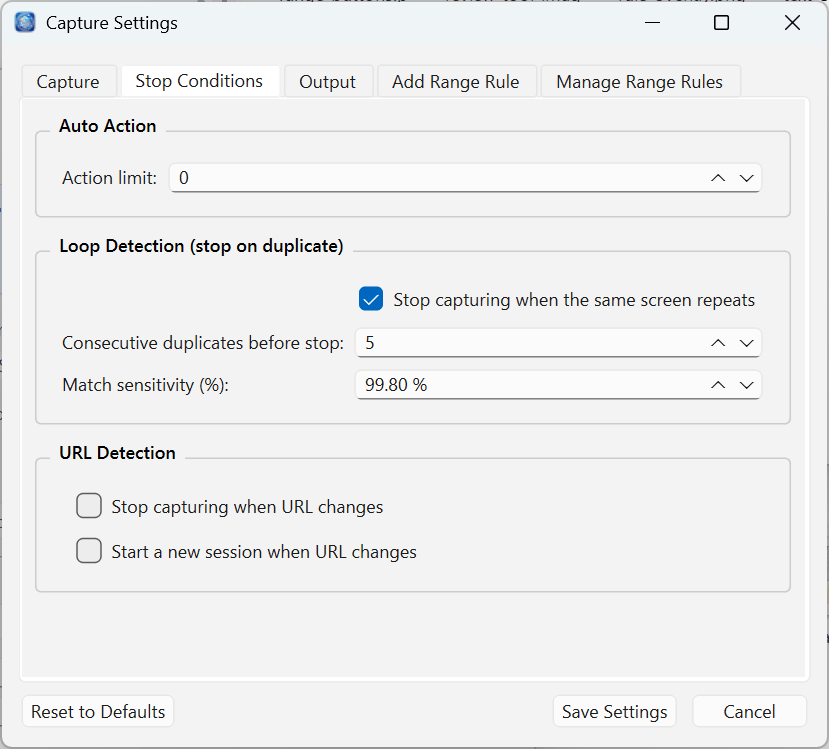
All stop conditions are grouped under the Stop Conditions tab in Settings → Capture Settings. There are three groups: Auto Action (action limit), Loop Detection, and URL Detection.
4Action limit All plans
You can cap the number of captures (i.e. page-turn actions). Set to 0 for unlimited — StillSnap will keep capturing until another stop condition triggers or you stop it manually.
- If you know the page count of a book, enter it here to avoid overshooting.
- When the page count is unknown, leave it at 0 and rely on Loop Detection or URL change to stop automatically.
5Loop Detection (stop on duplicate screen) All plans
When the last page is reached, page-turn actions stop changing the screen. Loop Detection automatically stops capture when the same screen appears a set number of times in a row. This is the easiest way to detect the end of a book or document.
- Stop on loop — Enable or disable this feature.
- Consecutive duplicates before stop — How many times the same screen must appear in a row before capture stops. Too low a value may cause false stops on pages that happen to look similar.
- Detection sensitivity — How similar two screens must be to count as "the same." Higher sensitivity treats small differences as distinct screens; lower sensitivity ignores minor variations.
6Stop on URL change & auto-resume (browser capture)
When capturing in a browser, switching between chapters or volumes typically changes the URL. You can use this as a natural boundary.
- Stop when URL changes Pro or above — Stops capture as soon as the URL of the displayed page changes. This automatically marks the boundary between chapters or volumes.
- Auto-resume Unlimited — After stopping on a URL change, automatically continues capturing the next section.
7Stopping manually
You can stop capture at any time regardless of your settings. During capture, the StillSnap window is minimized — restore it from the taskbar and click Stop ▮.