What you'll learn
- The differences between the five Wait Mode options and when to use each (Smart (Auto) is recommended)
- Manual mode requires Pro
- The timeout safety net and how to adjust it for common problems
1What is Wait Mode?
When StillSnap automatically advances pages and captures them, capturing before the page has fully loaded can result in screenshots of a white loading screen or a mid-animation frame. Wait Mode controls how StillSnap pauses between captures — one setting per shot.
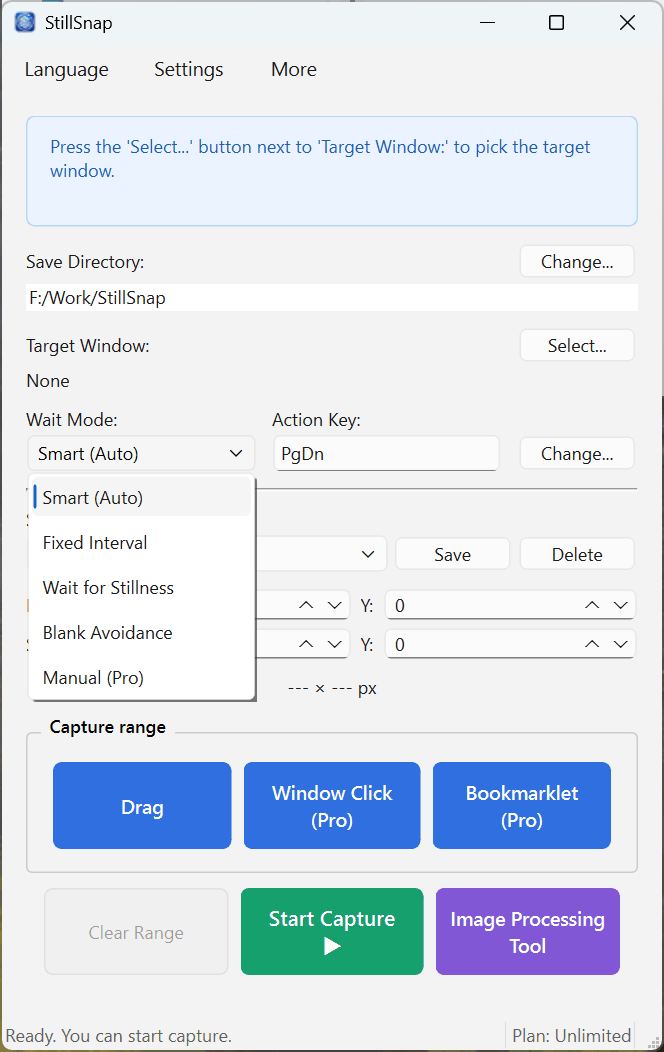
Select a mode from Wait Mode: in the main window. Choosing a mode that matches how your target content loads will minimize capture failures.
2The Five Modes
| Mode | How it waits | Best for |
|---|---|---|
| Smart (Auto) | Waits until the screen is no longer blank and all motion has stopped — combining the best of Blank Avoidance and Wait for Stillness. | Start here. Works well with most targets. (Recommended — default) |
| Fixed Interval | Waits a fixed number of seconds after each action. | Targets with a consistent, predictable load time. |
| Wait for Stillness | Waits until the screen stops moving. | Targets where you want to wait for scrolling or animations to fully settle. |
| Blank Avoidance | Waits until content appears (screen is no longer blank). | Targets that briefly show a white screen while loading. |
| Manual Pro | Does not advance automatically; you control when to proceed. | When you want to page through content at your own pace. |
Smart (Auto) works fine in most cases. Only switch to another mode, or adjust the parameters below, if captures are not coming out correctly.
3Fine-tuning and the Timeout Safety Net
Per-mode wait times and thresholds can be adjusted under Settings → Capture Settings in the Wait section.
- You can tune the Fixed Interval duration, the stillness threshold for Wait for Stillness, the pre- and post-wait for Blank Avoidance, and more.
- Timeout (safety net) — A maximum wait time that applies to every mode. If the wait condition is never satisfied, StillSnap will stop waiting and capture anyway once this time elapses, preventing the capture from stalling indefinitely.
Longer wait times reduce failures but slow down the overall capture session. Too short, and StillSnap may capture incomplete screens. The easiest approach is to keep Smart (Auto) and only adjust the timeout if needed.
4Troubleshooting Tips
- White screen or loading indicator appears in captures — Switch to Smart (Auto) or Blank Avoidance, and/or increase the timeout slightly.
- Animation or scroll motion appears mid-frame — Switch to Wait for Stillness or Smart (Auto), and/or increase the stillness threshold.
- Each capture takes too long — Reduce the timeout, or use Fixed Interval with a shorter duration if it suits the target.
- You want to advance pages yourself — Use Manual mode (Pro and above).