What you'll learn
- How to register and use the bookmarklet (Pro)
- Local server port configuration and auto-start
- What to do when changes don't apply or the port is already in use
1What is the Bookmarklet?
The bookmarklet is a way to capture pages directly from your browser. When you click the bookmarklet you've saved (a small one-click bookmark), it sends the page's visible area to StillSnap as the capture area. This lets you set the capture area to match the browser page precisely and effortlessly.
StillSnap and your browser communicate through a local server that runs entirely on your computer. No external network connection is made.
2Registering the Bookmarklet (one-time setup)
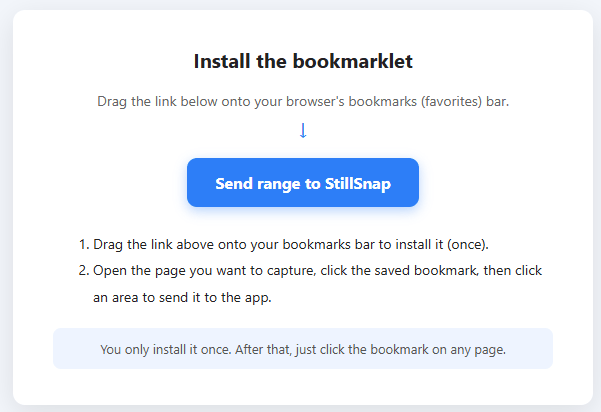
- In the main window, under Capture area selection, click Bookmarklet. The local server starts and a setup page opens in your default browser.
- Drag and drop the link shown on that page onto your browser's bookmarks bar to register it.
- You only need to do this once. From then on, just click the bookmarklet on any page you want to capture.
3How to Use
- Open the page you want to capture in your browser.
- Click the bookmarklet — a range-selection overlay appears on the page.
- Click to confirm the area you want to capture. That area is sent to StillSnap and applied as the capture area.
- From there, proceed as usual: configure the Wait Mode and Action Key, then click Start Capture.
4Local Server Settings (Port & Auto-start)
The local server listens on port 50000 at 127.0.0.1. You can change these settings at Settings → Capture Settings → Browser Integration.
- Port number — default is 50000. Change this if another application is using the same port.
- Auto-start — enabled by default on Pro and above. The local server starts automatically when StillSnap launches.
5Troubleshooting
"Could not start the server because port ○○ is already in use"
Another application is using the same port. Go to Settings → Capture Settings → Browser Integration, change the port number to a different value, then re-register the bookmarklet.
Clicking the bookmarklet does not update StillSnap
Make sure StillSnap is running and the local server has started. If you changed the port number, you need to re-register the bookmarklet. If your bookmarklet is outdated, open the setup page and register a fresh one.
The Bookmarklet button is grayed out or unavailable
Browser capture is a Pro and above feature. Please check your plan. To review or upgrade your plan, see License & Plans.